It's a familiar scenario: you receive a critical, password-protected PDF—an invoice, a legal document, or a confidential report. You click the link, and your browser tab opens, but instead of a password prompt, you're met with a blank screen or a cryptic "Failed to load PDF document" error. It’s a frustrating roadblock, especially when you need access right away.
As a software engineer, I've seen this issue trip up colleagues countless times. The problem isn't usually with the file itself but with the limitations of the tool you're using. Google Chrome's built-in PDF viewer is designed for speed and convenience, not for handling complex security features. Let's break down why this happens and what you can do about it.
Table of Contents
Understanding the Core Problem with Chrome's PDF Viewer
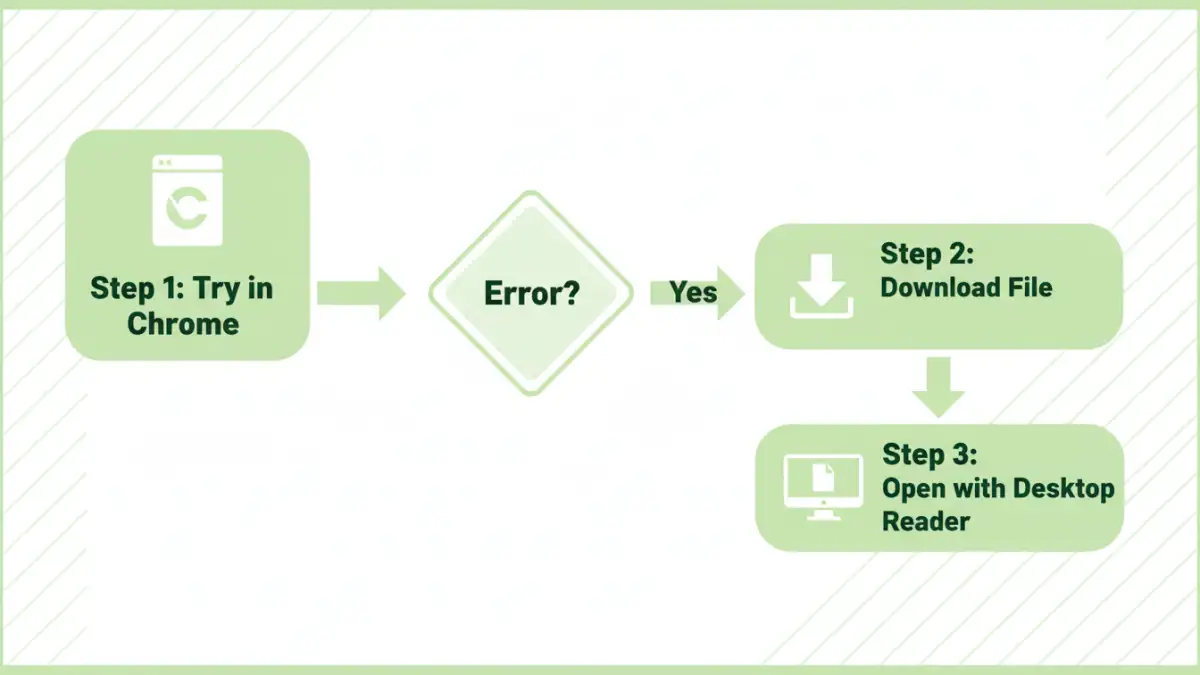
The primary reason Chrome struggles with some protected PDFs lies in the difference between the browser's lightweight viewer and a full-featured desktop application. Chrome's viewer prioritizes rendering standard documents quickly, but it lacks the robust engine needed to interpret all types of PDF encryption and permissions.
PDF Encryption: User vs. Owner Passwords
Not all password-protected PDFs are created equal. There are generally two types of passwords a PDF can have. A 'user password' (or 'open password') is required to open and view the file. An 'owner password' (or 'permissions password') restricts actions like printing, copying text, or editing the document. While Chrome can usually handle a simple user password, it often fails when a file has more complex owner permissions or uses certain encryption algorithms that its viewer doesn't support.
The Limitations of a Browser-Based Viewer
Dedicated applications like Adobe Acrobat Reader are built from the ground up to adhere to the full PDF specification, including all its security protocols. They have sophisticated decryption modules to handle various encryption standards. In contrast, Chrome's viewer is a simplified implementation. It might not recognize the specific encryption method used, leading it to fail without even showing a password prompt. This is a deliberate design choice to keep the browser fast and lean.
Common Error Scenarios and What They Mean
When you encounter a problem, the message—or lack thereof—can give you clues about the underlying issue. Understanding these common errors helps you diagnose the problem faster.
Error: "Failed to load PDF document"
This is the most frequent error message. It's a generic indicator that Chrome's PDF rendering engine could not process the file. This can happen for several reasons: the file is corrupted, the server hosting it has issues, or, most commonly with secure files, the encryption is incompatible with Chrome's viewer. The browser tries to render the file, fails, and gives up.
Problem: PDF Password Prompt Not Showing
Even more confusing is when nothing happens at all—just a blank or gray screen. If you know a file is password-protected but Chrome doesn't ask for a password, it's a strong sign that the viewer doesn't even recognize the file's security protocol. It essentially sees a file it can't read and doesn't have the logic to prompt for a key it doesn't know how to use. This is a classic symptom of an unsupported encryption type.
Step-by-Step Solutions to Open Your PDF
Fortunately, getting access to your file is usually straightforward. The goal is to bypass Chrome's limited viewer and use a tool that is equipped to handle the file's security.
- The Best Method: Download and Open Locally. This is the most reliable solution. Instead of clicking to open the PDF in a new tab, right-click the link and select "Save link as..." to download the file to your computer. Then, open it using a dedicated PDF reader like Adobe Acrobat Reader (free), Foxit Reader, or Preview on macOS. These applications are designed to handle all forms of PDF security correctly.
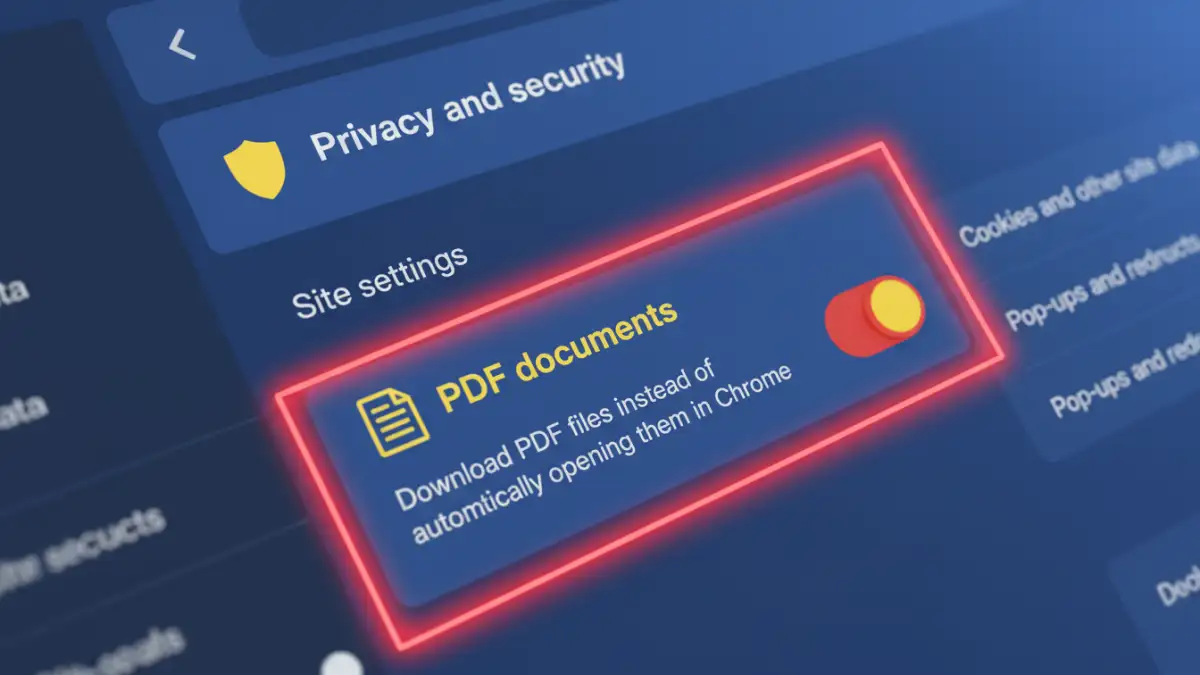
- Change Chrome's Default PDF Behavior. You can tell Chrome to always download PDFs instead of trying to open them. Navigate to Chrome Settings > Privacy and security > Site Settings > Additional content settings > PDF documents. From there, select "Download PDFs." This prevents the issue from happening in the future and streamlines your workflow for secure documents.
- Check for Conflicting Browser Extensions. Occasionally, ad blockers or other security extensions can interfere with how content is loaded in the browser. Try opening the PDF in an Incognito window, which typically disables extensions. If it works there, you'll need to identify and disable the conflicting extension on a case-by-case basis.
Advanced Troubleshooting for Persistent Issues
If the basic steps don't work, there might be a deeper issue with your browser's configuration or the file itself. Here are a few more things to check before concluding the file is corrupt.
Clear Your Browser Cache
Sometimes, a corrupted version of the file can get stuck in your browser's cache. Clearing your cache and cookies can resolve this. Go to Chrome Settings > Privacy and security > Clear browsing data. Select "Cached images and files" and click "Clear data." Then, try accessing the PDF again.
Verify the File Integrity
If possible, try opening the file on a different device or have a colleague attempt to open it. If no one can open it, even with a desktop PDF reader, the file itself may have been corrupted during its creation or transfer. In this case, you'll need to request a new copy from the sender. A common issue I've seen is a file being improperly encoded in an email, which damages its structure.
PDF Viewer Feature Comparison
| Feature | Chrome Built-in PDF Viewer | Adobe Acrobat Reader (Desktop) |
|---|---|---|
| Basic PDF Viewing | Yes | Yes |
| Simple Password Prompt | Usually | Yes |
| Complex Encryption/Permissions | Often Fails | Yes |
| Digital Signatures | No | Yes |
| Form Filling & Saving | Limited | Yes |
| Commenting & Annotation | No | Yes |
| Best For | Quickly viewing simple, unsecured documents. | Reliably opening all PDF types, including secure and complex files. |