
Just last week, a project manager pinged me in a panic: a secure link to a critical design file wasn't working. All they saw was a cryptic 'decryption failed' message. This is a surprisingly common scenario when dealing with services that perform encryption and decryption directly within the browser, and it can be incredibly frustrating when you're on a deadline.
The good news is that the file itself is almost always safe. The problem usually lies in the delicate process happening between the link you clicked and your browser's attempt to unscramble the data. Understanding what's happening behind the scenes is the key to fixing it.
Table of Contents
Understanding In-Browser Decryption
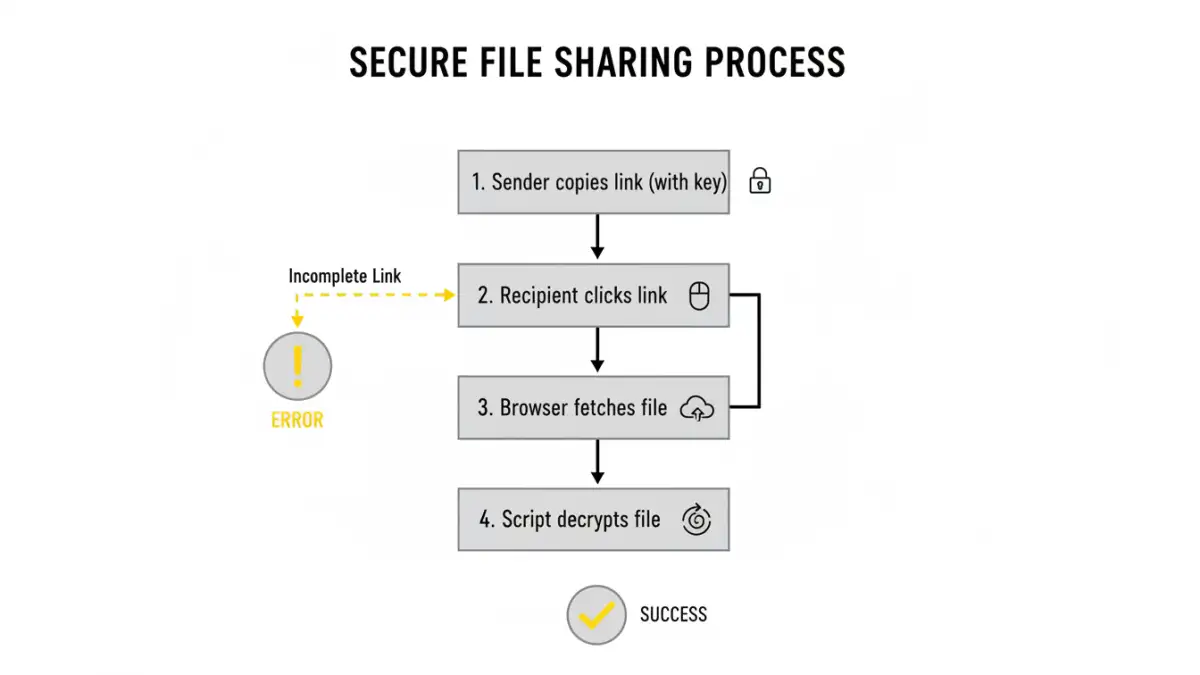
When you use a secure sharing service, the encryption often happens on your device before the file is even uploaded. The service generates a unique encryption key, and this key is what unlocks the file. To maintain zero-knowledge privacy, the server never sees this key. Instead, it's appended to the shareable link you receive, typically after a hash symbol (#).
When a recipient clicks the link, their browser loads the encrypted file from the server, but it intentionally ignores the part of the URL after the #. The website's code (JavaScript) then grabs the key from the URL fragment and uses it to decrypt the file locally on their computer. Nothing sensitive is ever transmitted to the server, which is great for security but introduces a few potential points of failure.
Common Causes for Decryption Failures
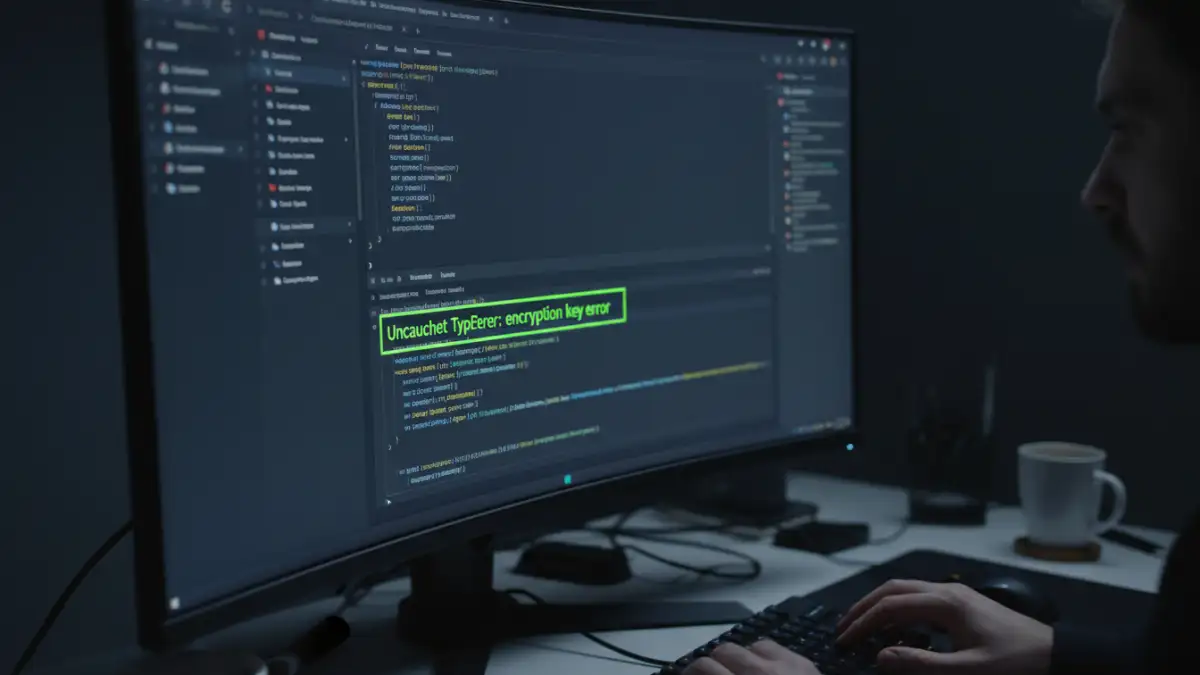
When an in browser decryption failed message appears, it's rarely due to a single cause. After troubleshooting this for various teams, I've found the culprits usually fall into one of a few categories. The most frequent issue is surprisingly simple: an incomplete link.
The Incomplete URL Fragment
This is the number one reason for decryption failures. The encryption key is stored in the URL fragment (e.g., `.../file/123#**this-is-the-secret-key**`). Many email clients, chat applications, or even manual copy-pasting can truncate the URL, cutting off the hash and the key. Without that key, the browser has the locked box (the file) but no way to open it, resulting in an immediate decryption error.
Interference from Browser Extensions
Your browser is a complex environment. Ad-blockers, privacy extensions, and even some antivirus plugins can interfere with the JavaScript needed to perform the decryption. They might block the script from running, prevent it from accessing the URL fragment, or mistakenly flag the decryption process as malicious activity. This is a common reason someone might say they `cannot decrypt file in chrome` but it works for a colleague in Firefox.
How to Fix a Browser File Decryption Error
When you encounter a `browser file decryption error`, don't panic. The solution is often straightforward. Start with the simplest fix first before moving on to more involved steps. The goal is to isolate the variable that's causing the problem.
Step-by-Step Fixes
- Verify the Full URL: Contact the sender and ask them to re-send the link. Instruct them to paste it into a plain text editor first (like Notepad or TextEdit) to ensure the full string, including the `#` and the key, is present before they send it to you.
- Use an Incognito or Private Window: This is the quickest way to test for extension interference. Private browsing windows typically run with all extensions disabled. If the file decrypts successfully here, you've confirmed an extension is the culprit. You can then disable your extensions one by one in a normal window to find the problematic one.
- Clear Your Browser Cache: Sometimes, a corrupted or outdated version of the web page's script is stored in your browser's cache. Clearing the cache and cookies for that specific site can force the browser to download a fresh copy, potentially resolving the issue.
- Try a Different Browser: If it fails in Chrome, try Firefox, Edge, or Safari. This helps determine if the issue is specific to your browser's configuration or a more universal problem. It can also help bypass temporary bugs in a specific browser version.
Best Practices for Sharing Secure Links
Preventing a `secure share link problem` is always better than fixing one. As the sender, you can take a few steps to ensure your recipient has a smooth experience. Clear communication is just as important as the technology itself.
First, always double-check the link you've copied. A good practice is to paste it into a new private browser window on your own machine to confirm it works before sending it. When you do send it, consider using a code block or telling the recipient to be careful when copying, as this can help prevent truncation.
Additionally, provide simple instructions. Let the recipient know what to expect and suggest they use a private browsing window if they encounter an error. This proactive guidance can save a lot of back-and-forth and prevent unnecessary frustration for everyone involved.
Common Decryption Error Troubleshooting
| Symptom | Likely Cause | Recommended Solution |
|---|---|---|
| 'Decryption Failed' or 'Invalid Key' Error | Incomplete URL (missing the # and key fragment). | Contact the sender and ask for the full, untruncated link. |
| Page loads but nothing happens (hangs). | Browser extension (ad-blocker, script blocker) interference. | Open the link in an Incognito/Private window. |
| Works for others but not for you. | Local browser issue (cache, extensions, outdated version). | Clear cache, disable extensions, or update your browser. |
| `Encryption Key Error` in Console | The script cannot find or parse the key from the URL. | Ensure the URL is complete and no extensions are modifying it. |
| Works in Firefox but not Chrome. | A Chrome-specific extension or security setting is blocking the script. | Troubleshoot Chrome extensions or use Firefox as an alternative. |