
Securing sensitive information is paramount, especially when dealing with multiple files. Imagine needing to encrypt a folder full of client reports or confidential internal memos before sharing them. Manually applying passwords to each document one by one can be incredibly time-consuming and prone to errors. Fortunately, there are streamlined approaches to handle this efficiently.
As someone who has navigated the complexities of software development and data security for over a decade, I've encountered numerous scenarios where bulk protection of files was a critical requirement. Finding a practical and effective way to batch protect documents, particularly within familiar environments like Microsoft Office, can save significant time and reduce security risks.
Table of Contents
Understanding the Basics of Document Protection
At its core, password protection for documents involves encryption. When you apply a password to a Word document, you're essentially scrambling its contents using an algorithm. Only someone who possesses the correct password can decrypt and view the file. This is a fundamental layer of office document protection.
Why Password Protect Documents?
The reasons are varied: safeguarding proprietary business information, protecting client confidentiality, ensuring compliance with data privacy regulations, or simply preventing accidental data leaks. Having a robust strategy for password protect word docs is crucial in today's digital landscape.
Methods within Microsoft Office

While Microsoft Word doesn't have a direct built-in feature to select multiple documents and apply a single password simultaneously, it offers ways to protect individual files, which can be automated to some extent. For true batch file security, we often need to look at scripting or external aids.
Individual Document Encryption
Within Word, you can go to 'File' > 'Info' > 'Protect Document' > 'Encrypt with Password'. This is effective for single files but becomes tedious when you have many. Repeating this process for dozens or hundreds of documents is impractical.
Leveraging VBA for Automation
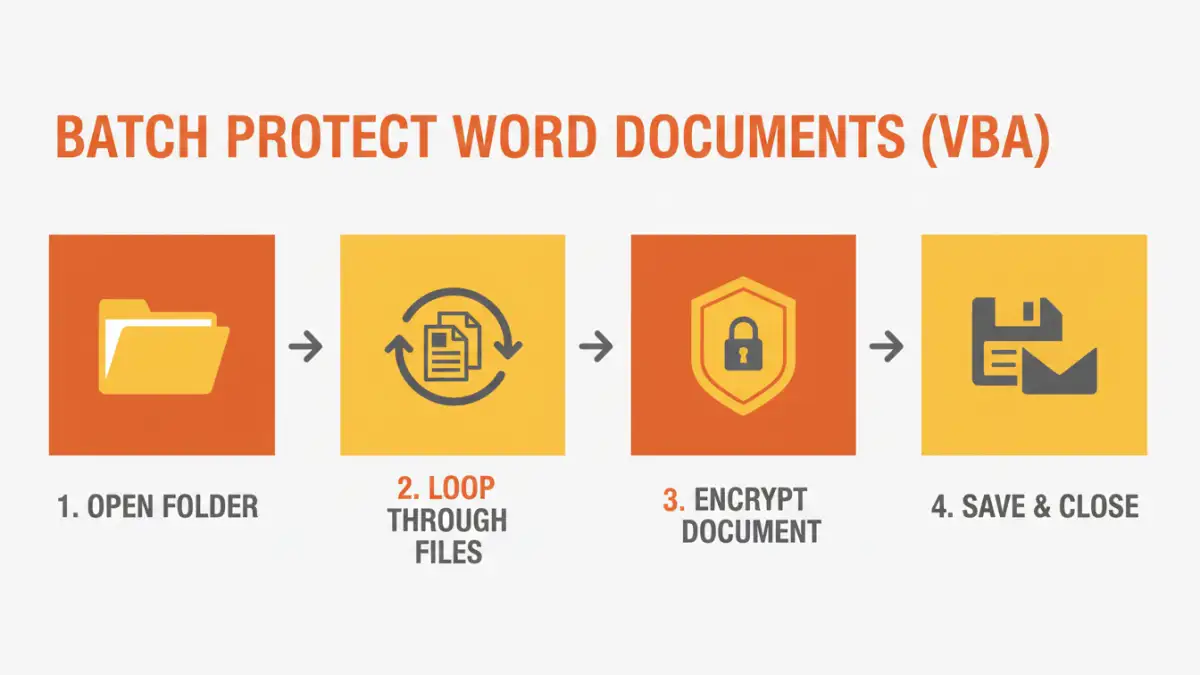
For those comfortable with a bit of coding, Visual Basic for Applications (VBA) within Office can be a powerful tool. A VBA script can loop through a specified folder, open each Word document, apply a password, and save the changes. This method allows for true batch protect documents functionality directly within the Office suite.
Example VBA Snippet (Conceptual)
A script would typically involve setting up a reference to the Word Application object, defining a folder path, and then iterating through files. For each document, it would execute the encryption command with a predefined password. This requires careful testing to ensure it functions as expected and doesn't corrupt any files.
Using External Tools for Batch File Security
When VBA scripting feels too complex or you need a more user-friendly interface, several third-party applications specialize in batch file security. These tools are designed precisely for tasks like batch protecting documents.
Dedicated Software Solutions
Numerous software programs are available that can encrypt multiple files or folders at once. Some offer advanced features like AES encryption, batch decryption, and password management. These are often the most straightforward solution for widespread office document protection.
Online Tools and Services
There are also online services that claim to offer batch password protection. While convenient for occasional use, caution is advised regarding privacy and security. Uploading sensitive documents to third-party servers, even for encryption, carries inherent risks. Always research the reputation and security policies of any online service before use.
Best Practices for Office Document Protection
Regardless of the method chosen, adhering to best practices ensures maximum security and usability. Strong passwords are the first line of defense. They should be complex, unique, and ideally managed securely.
Creating Strong Passwords
A strong password typically includes a mix of uppercase and lowercase letters, numbers, and symbols. Avoid common words, personal information, or sequential characters. Consider using a password manager to generate and store complex passwords securely.
Managing and Storing Passwords
The challenge with batch protecting documents is remembering all the passwords. If you use different passwords for different sets of documents, keeping track becomes difficult. A password manager can help organize these. For critical documents, consider storing passwords in a separate, highly secure location, perhaps even offline.
Key Considerations
When implementing batch file security, think about the workflow. Who will be applying the passwords? Who needs access? How will access be revoked or changed? Planning these aspects prevents future complications.
Password Recovery and Access Control
It's crucial to have a plan for password recovery in case a password is lost. This is particularly important for organizational use. Without a recovery mechanism, documents could become permanently inaccessible. For team environments, implementing access control policies ensures only authorized personnel can access sensitive information.
Comparison Table: Document Protection Methods
| Method | Ease of Use | Scalability (Batch Processing) | Security Level | Cost | Best For |
|---|---|---|---|---|---|
| Manual Word Encryption | Moderate | Low | Good (depends on password) | Free | Few documents, individual protection |
| VBA Scripting | High (for coders) | High | Good (depends on password & script) | Free | Automating within Office ecosystem |
| Third-Party Desktop Software | High | High | Very Good (AES encryption) | Paid (often one-time or subscription) | Regular batch protection, advanced features |
| Online Tools | Very High | Moderate to High | Variable (privacy concerns) | Free to Paid | Non-sensitive documents, occasional use |