
Managing security for a large number of sensitive documents can quickly become a time-consuming chore. Imagine needing to apply password protection or specific permissions to hundreds, or even thousands, of PDF files. Doing this one by one is not only tedious but also prone to human error. My experience has shown that when dealing with bulk operations, automation is key to efficiency and consistency.
This is where the ability to automate pdf security settings comes into play. Whether you're a legal professional safeguarding client contracts, a finance department protecting financial reports, or an educator distributing secure course materials, streamlining this process can save significant time and reduce risk. Fortunately, several methods and tools can help you achieve this.
Table of Contents
Understanding the Need for Automation
In many professional environments, documents contain sensitive information that requires protection. This protection typically involves setting passwords to restrict opening the document or applying permissions to control actions like printing, copying, or editing. When you have a large volume of files, manually opening each PDF, navigating to its security properties, setting passwords, and then saving it is incredibly inefficient.
The risk of human error is also a significant concern. A forgotten password on one document or an incorrectly applied permission can lead to data breaches or accessibility issues. Automating these tasks ensures that the same security protocols are applied consistently across all selected documents, minimizing these risks and freeing up valuable human resources for more critical tasks.
Methods for Automation
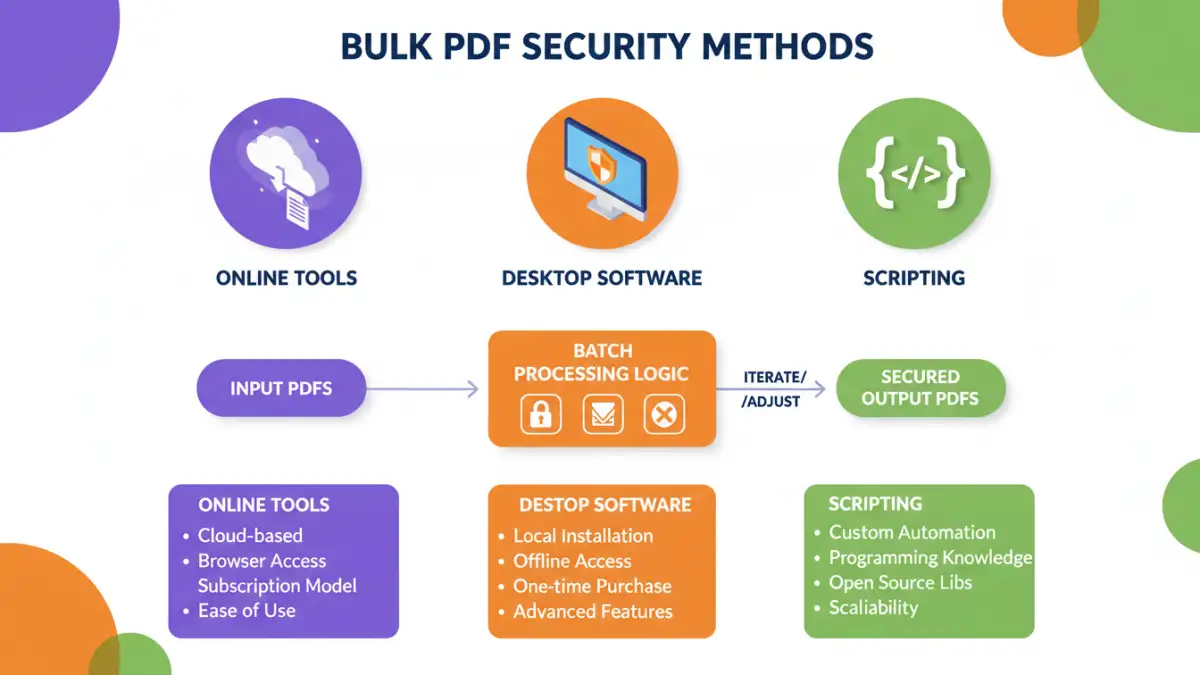
Fortunately, several approaches can help you automate the process of setting security for multiple PDF documents. Each method has its own set of advantages and might be more suitable depending on your technical expertise, the volume of documents, and the specific security requirements.
Using Online PDF Security Tools
For users who prefer not to install additional software, various online tools offer batch PDF security functionalities. These platforms typically allow you to upload multiple PDF files, set a common password for opening, and often configure restrictions like printing or editing. After processing, you can download the secured files. This method is excellent for quick, on-the-fly security needs but requires a reliable internet connection and careful consideration of the platform's privacy policies, as you are uploading your documents to a third-party server.
Leveraging Desktop Software
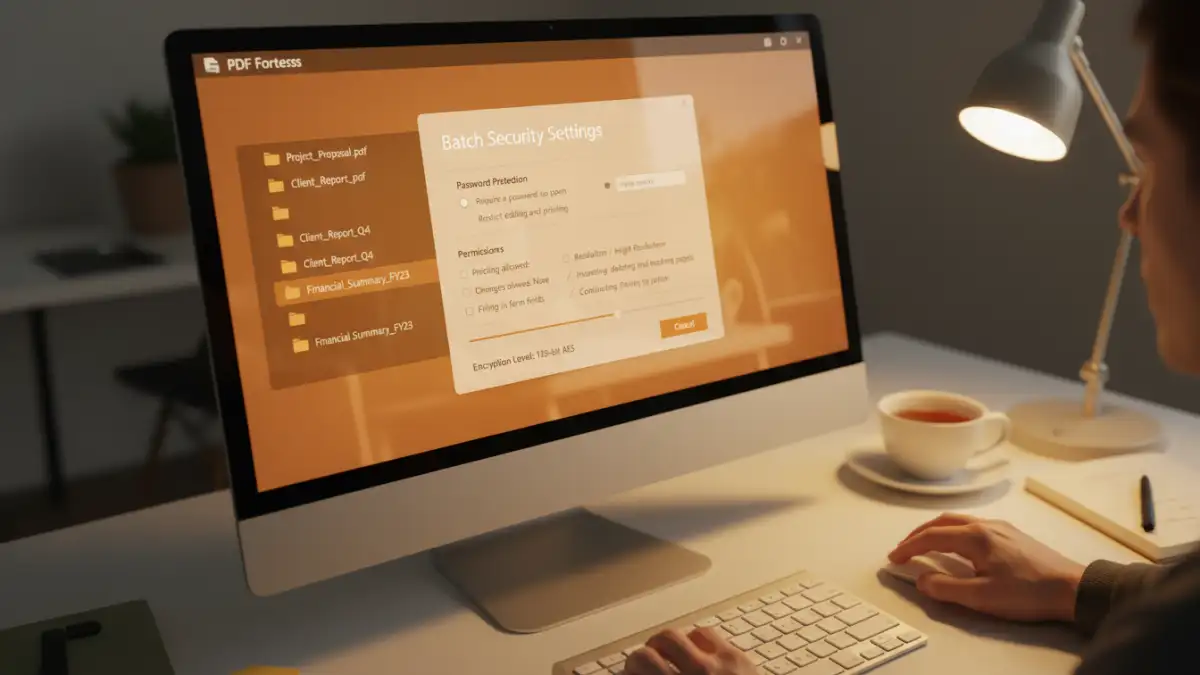
Dedicated desktop software often provides more robust and secure options for bulk pdf protection. Many professional PDF editing suites, such as Adobe Acrobat Pro, offer batch processing capabilities. You can create custom actions or batch sequences that apply specific security settings—like owner passwords and user passwords, or restrictions on printing and copying—to a selected folder of PDFs. This approach offers greater control, enhanced security (as files are processed locally), and is ideal for regular, high-volume security tasks.
Exploring Scripting Solutions
For technically advanced users or organizations with complex workflows, scripting offers the ultimate flexibility. Languages like Python, with libraries such as PyPDF2 or reportlab, can be used to write custom scripts that automate PDF security settings. You can precisely define the encryption levels, password policies, and permission configurations. This method requires programming knowledge but provides unparalleled customization and can be integrated into larger automated workflows. It's the most powerful way to batch pdf settings for highly specific requirements.
Key Considerations
When choosing a method to automate your PDF security, several factors are important. The type of security needed is paramount. Are you only applying a password to open the document, or do you also need to restrict printing, copying, or editing? The sensitivity of the data also dictates the strength of encryption and password complexity required. Furthermore, consider the volume of documents you'll be processing regularly, as this will influence whether a simple online tool or a more powerful desktop application or script is more appropriate.
Your technical comfort level plays a significant role. If you're not comfortable with coding, online tools or user-friendly desktop software will be your best bet. For IT departments or developers, scripting offers the most power and scalability. Always ensure that whichever method you choose, it complies with any relevant data protection regulations (like GDPR or HIPAA) that might apply to your documents.
Best Practices for Batch PDF Security
Regardless of the method you choose, adhering to best practices is crucial for effective document security automation. Always use strong, unique passwords. For batch operations, consider a system for managing these passwords, especially if different sets are applied to different document groups. Regularly review and update your security settings and the tools you use to ensure they remain effective against evolving threats.
Test your automated processes thoroughly with a small batch of non-critical documents before applying them to your entire collection. Verify that the security settings have been applied correctly and that authorized users can still access and use the documents as intended. Document your procedures for applying batch security settings so that the process can be replicated or handed over to others consistently.
Comparison of Methods for Automating PDF Security
| Method | Ease of Use | Flexibility | Security Level | Cost |
|---|---|---|---|---|
| Online Tools | High | Medium | Medium (depends on provider) | Free to Paid |
| Desktop Software (e.g., Adobe Acrobat Pro) | Medium | High | High | Paid (often subscription) |
| Scripting (e.g., Python) | Low (requires coding) | Very High | Very High | Free (for scripting language/libraries) |