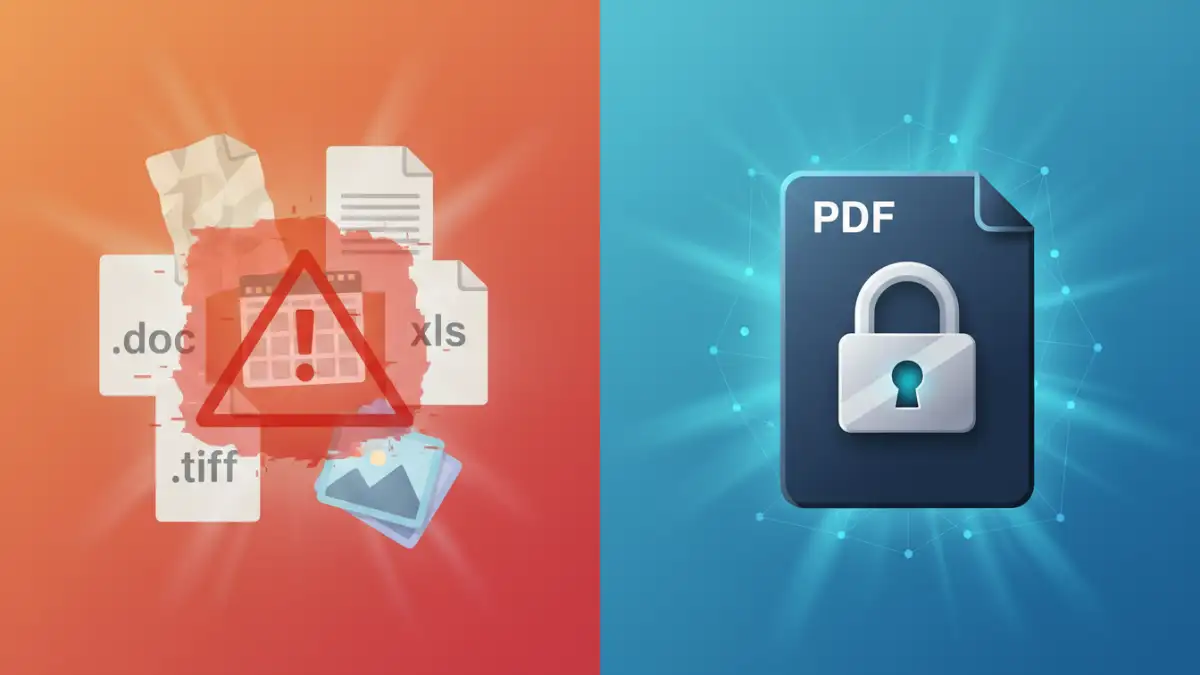
Dealing with outdated digital archives can feel like excavating a forgotten tomb. Many organizations and individuals find themselves wrestling with proprietary formats or older, less secure file types that are difficult to access, share, or protect. The need to transition these valuable historical records or critical business documents into a universally accessible and secure format is paramount. Migrating these files to modern, robust PDF documents ensures long-term viability and enhanced security.
Table of Contents
Understanding the Challenges of Legacy Archives
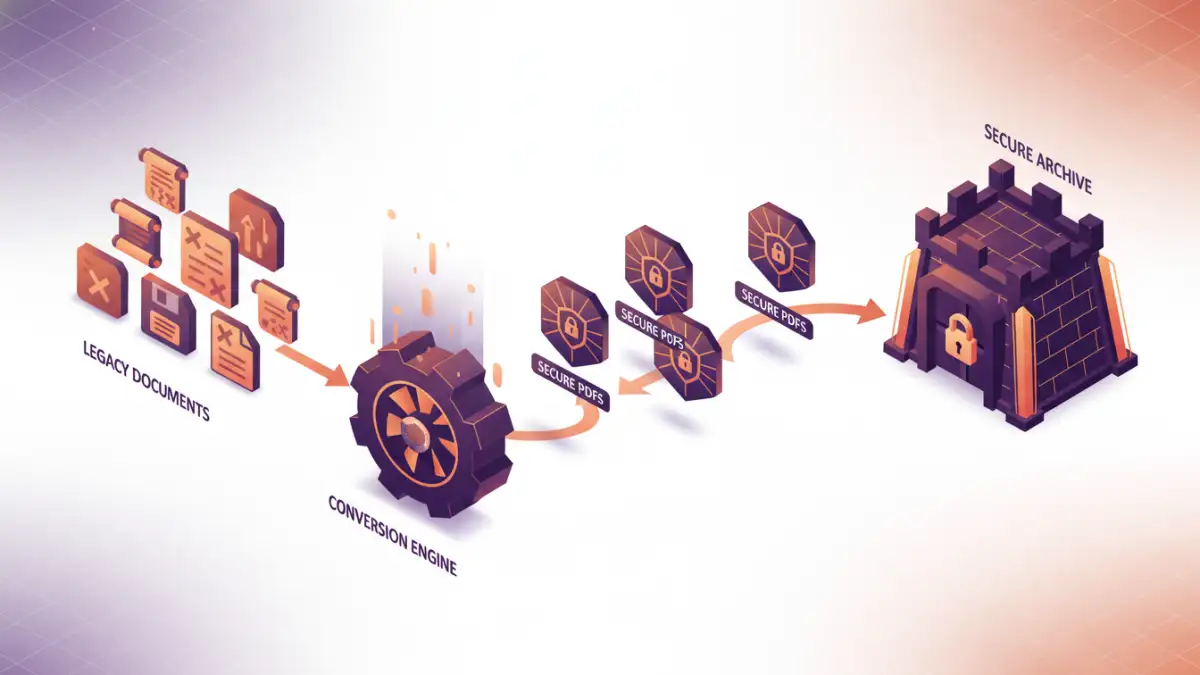
I've seen firsthand how challenging legacy formats can be. Think about proprietary word processing documents from the early 2000s, obscure database exports, or even scanned images saved in uncommon file types. Often, the original software required to open them is no longer supported, or the files themselves become corrupted over time. This lack of accessibility can be a significant roadblock for businesses needing to comply with data retention policies or for individuals looking to preserve personal histories.
Common Obstacles
The primary obstacles typically involve software obsolescence, data corruption, compatibility issues across different operating systems, and inherent security vulnerabilities in older formats. Without a clear strategy, these digital assets risk becoming permanently inaccessible, effectively lost to time. This is where a well-planned migration strategy becomes essential.
Why PDF is the Modern Standard
The Portable Document Format (PDF) has become the de facto standard for document exchange and archiving for very good reasons. It's designed to preserve the exact look and feel of a document, regardless of the software, hardware, or operating system used to view it. This universality is a massive advantage over proprietary formats.
Beyond its compatibility, PDF offers robust security features. You can encrypt PDFs with strong passwords, restrict printing or copying of content, and even digitally sign documents to verify authenticity and integrity. These capabilities make it an ideal target format for any legacy document migration project aiming for secure file formats.
Step-by-Step Migration Methods
Migrating from old archive formats to secure PDF involves several approaches, depending on the source format and the complexity of the data. My experience suggests a phased approach often yields the best results.
Method 1: Using Built-in Operating System or Software Features
For many common document types (like Word, Excel, or even some image files), the simplest approach is often to open the file in its native or a compatible modern application and then use the 'Save As PDF' or 'Print to PDF' functionality. Most modern operating systems and applications include this feature. For example, in Windows, you can often select 'Microsoft Print to PDF' as a printer. On macOS, the 'Save as PDF' option is readily available in the print dialog.
Method 2: Utilizing Online Conversion Tools
There are numerous online services designed to convert a wide array of file formats into PDF. These can be incredibly convenient for quick, one-off conversions or for dealing with less common file types where native applications aren't readily available. Simply upload your file, select PDF as the output, and the service handles the conversion. However, it's crucial to be mindful of privacy and security when using online tools, especially for sensitive documents. Stick to reputable services and review their privacy policies.
Method 3: Employing Dedicated Desktop Software
For batch processing or dealing with highly complex legacy formats, dedicated desktop software offers more control and often better security. Tools like Adobe Acrobat Pro, Foxit PhantomPDF, or specialized conversion utilities can handle bulk conversions, preserve formatting more accurately, and integrate advanced PDF security features directly into the workflow. This is often the most robust solution for extensive legacy document migration projects.
Enhancing Security with PDF Features
Once your documents are in PDF format, you can leverage built-in security features to protect them. Password protection is a fundamental layer, preventing unauthorized access to open the document. You can set different passwords for opening the document versus for restricting actions like printing or editing.
Beyond passwords, consider applying restrictions on copying text or images, and disable printing if necessary. For long-term archiving and legal compliance, digital signatures are invaluable. They embed a verifiable certificate that confirms the document's origin and ensures it hasn't been tampered with since it was signed. Implementing these features during your archive to secure pdf process is vital.
Best Practices for Legacy Document Migration
When undertaking a legacy document migration, several best practices can ensure a smooth and successful transition. First, conduct an inventory of your existing archives to understand the types of formats you're dealing with and prioritize what needs to be migrated. Develop a clear conversion strategy, choosing the right tools based on the volume and complexity of your files.
Always perform test conversions on a small batch of representative files before committing to a full migration. This helps identify potential formatting issues or compatibility problems. After conversion, thoroughly review the resulting PDFs to ensure data integrity and that all content is accurately preserved. Establish clear pdf archive best practices for naming conventions, folder structures, and ongoing security measures for your newly converted PDF archives.
Comparison Table: Migration Methods
| Method | Pros | Cons | Best For |
|---|---|---|---|
| Built-in OS/Software 'Save As PDF' | Free, readily available, preserves formatting well for common types | Limited file type support, manual process for individual files | Individual documents, common office formats (Word, Excel) |
| Online Conversion Tools | Convenient, supports many formats, quick for small batches | Potential privacy/security risks, may have file size/usage limits, variable quality | Non-sensitive files, quick conversions, diverse formats |
| Dedicated Desktop Software | Powerful batch processing, advanced features (encryption, OCR), high accuracy, secure | Costly, requires installation, potential learning curve | Large archives, sensitive data, complex formats, bulk processing |