Ever received a PDF from a colleague that you couldn't print or copy text from? It’s a common headache. You can open and read the document, but any attempt to edit, copy, or print is met with a frustrating grayed-out button. This happens when a PDF is protected by a permissions password, also known as an owner password.
Fortunately, if you can open the file, you often have options to remove these restrictions. This guide will walk you through several methods, from a simple browser trick to more powerful dedicated software. It's important to remember these methods are for situations where you have the right to modify the document but are hindered by the security settings.
Table of Contents
Understanding PDF Password Types
Before we dive into the solutions, it's crucial to understand that PDF files can have two different types of passwords. The method you need depends entirely on which one you're dealing with.
User Password (Open Password)
This is the password that prompts you the moment you try to open the PDF. Without it, you cannot view the document's content at all. The methods described in this article generally cannot bypass a user password. You must know this password to proceed.
Owner Password (Permissions Password)
This is the password that restricts what you can do with the PDF *after* you've opened it. It limits actions like printing, copying text and images, editing the document, adding comments, or filling out form fields. This is the type of restriction we can often remove, and it's the focus of this guide.
Methods to Remove PDF Restrictions

If you can open the PDF but can't edit or print it, you're dealing with an owner password. Here are the most effective ways to remove those limitations.
Method 1: Using Your Web Browser (The Print Trick)
This is my go-to first step because it's fast, free, and doesn't require any third-party software. Most modern web browsers like Google Chrome, Firefox, and Microsoft Edge have a built-in PDF reader and a 'Print to PDF' function that can effectively create a new, unrestricted copy of the document.
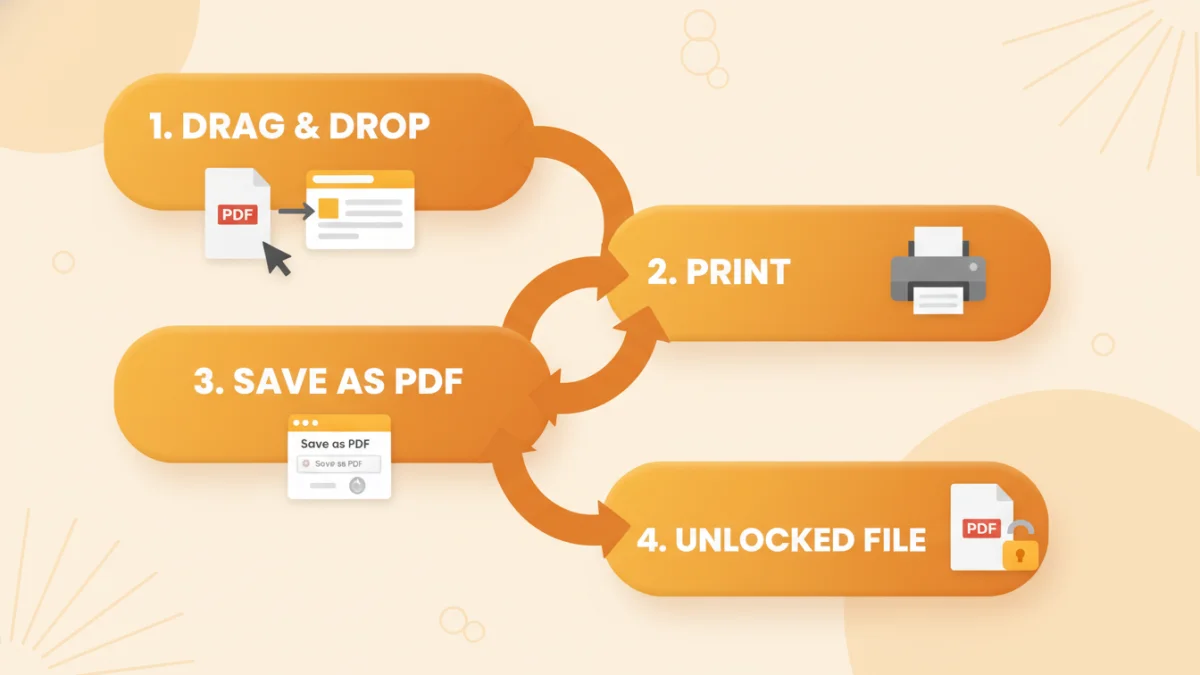
- Drag and drop the restricted PDF file into an open browser window.
- Once the file is open, press Ctrl+P (on Windows) or Cmd+P (on Mac) to open the print dialog.
- In the 'Destination' or 'Printer' dropdown menu, select 'Save as PDF'.
- Click 'Save' and choose a location on your computer. The new file you just saved will be a copy of the original but without the printing and copying restrictions.
This technique works because the browser essentially re-processes the document for printing, and in doing so, it creates a new version that doesn't carry over the old permission settings.
Method 2: Leveraging Online PDF Password Remover Tools
If the browser trick doesn't work, an online tool is the next logical step. Websites like Smallpdf, iLovePDF, and Soda PDF offer a simple `unlock pdf online` service. The process is usually very straightforward: you upload your file, the service processes it, and then you download the unlocked version.
These tools are incredibly convenient, but a word of caution is necessary. You are uploading your document to a third-party server. I would never use these services for files containing sensitive personal, financial, or confidential business information. For non-sensitive documents, however, they are an excellent option.
Choosing the Right Tool for the Job
With several options available, how do you decide which one to use? Your choice should depend on the sensitivity of your data, the frequency of your need, and the complexity of the password protection.
For a one-off, non-sensitive file, the browser method or a reputable online tool is perfectly fine. They are quick and require no installation. I've used the browser trick countless times to quickly enable commenting on a report or copy a paragraph from a locked manual.
However, if you frequently work with protected documents or handle sensitive information, investing in a desktop application is the wiser choice. Desktop software like Adobe Acrobat Pro or other dedicated PDF editors process files locally on your machine, eliminating the privacy risks associated with online tools. They also offer more robust features for handling complex security settings.
Legal and Ethical Considerations
It's vital to touch on the legal and ethical side of this. Using an `unlock pdf files password restricted remover` tool should only be done when you have the legitimate right to access and modify the content. For example, you might be removing a password from a document you created yourself but forgot the password to, or from a company document you have been authorized to edit.
Attempting to remove password protection from copyrighted material, confidential documents you don't have permission to access, or any file for malicious purposes is unethical and potentially illegal. Always respect copyright and intellectual property rights. These tools are for convenience and legitimate workflow needs, not for circumventing necessary security.
Tool Comparison for Removing PDF Restrictions
| Method | Pros | Cons | Best For |
|---|---|---|---|
| Web Browser 'Print to PDF' | Free; No software install needed; Secure as it's done locally. | May not work on all files; Only removes permission restrictions. | Quick fixes for non-complex, everyday documents. |
| Online PDF Remover Tools | Very easy to use; Fast processing; Accessible from any device. | Major privacy/security risk for sensitive data; May have file size limits. | Non-confidential documents when you need a fast solution. |
| Desktop Software (e.g., Acrobat Pro) | Most powerful and reliable; Secure (offline processing); Handles complex files. | Often requires a paid subscription or one-time purchase; Can be complex. | Frequent users, businesses, and handling sensitive or confidential information. |
| Command-Line Tools | Free and open-source; Scriptable for batch processing; High control. | Requires technical knowledge (command line interface); Not user-friendly. | Developers and IT professionals needing to automate PDF tasks. |