I recently helped a colleague who couldn't access an important encrypted file from a vendor. They had the password to open it, but couldn't copy text or print it for a meeting. This kind of permission-based lock is common, and knowing how to handle it when you have the authority to do so is a valuable skill.
Removing a password you already know from a PDF isn't about hacking; it's about convenience. It allows you to streamline workflows, archive documents without password lists, or share content with teams who also have a right to access it. This guide will walk you through the safe and legitimate methods to get this done.
Table of Contents
Understanding PDF Passwords
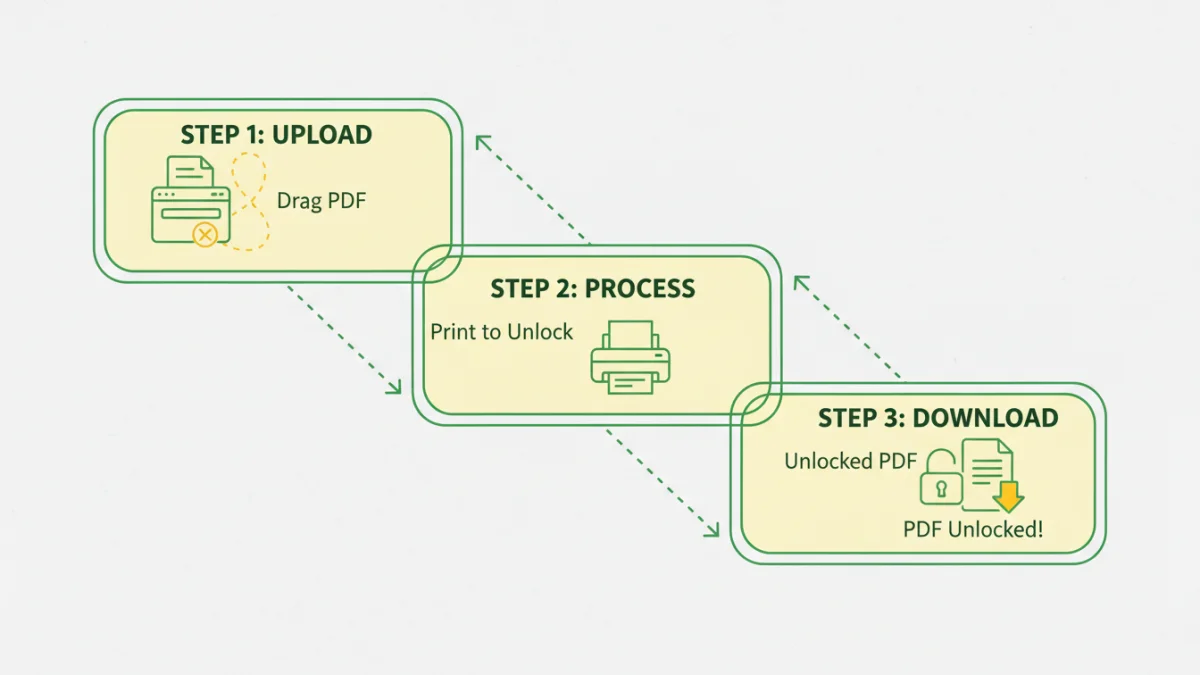
Before you try to remove a password, it's crucial to understand that PDFs can have two different types. The method you use depends entirely on which type of password is protecting the document. Trying the wrong approach will just lead to frustration.
Owner Password (Permissions Password)
This is the most common scenario I encounter professionally. An owner password doesn't prevent you from opening the file; instead, it restricts actions like printing, copying text, editing, or adding comments. If you can open the PDF but can't perform certain actions, it's protected by an owner password. Most removal methods are designed to handle this type of protection, assuming you have the right to modify the document.
User Password (Open Password)
A user password, or an 'open' password, locks the entire document. You cannot view its contents at all without entering the correct password first. Removing this type of password is much more difficult and often impossible without the original password. The tools and methods discussed here primarily focus on removing passwords once you've already authenticated and opened the file.
Methods to Remove PDF Passwords
Once you've identified the password type and have the necessary credentials to open the file, you can use several simple methods to save a new, unrestricted version of the document. These techniques work by essentially creating a new copy of the PDF without the password restrictions.
The Browser 'Print to PDF' Trick
This is my go-to method for its simplicity and security. Since it happens entirely on your local machine, you don't have to upload your sensitive document to a third-party server. It works perfectly for removing owner (permission) passwords.
- Open the password-protected PDF in a web browser like Google Chrome, Microsoft Edge, or Firefox. You will need to enter the password to view it.
- Once the document is open, go to the 'Print' menu (you can usually press Ctrl+P or Cmd+P).
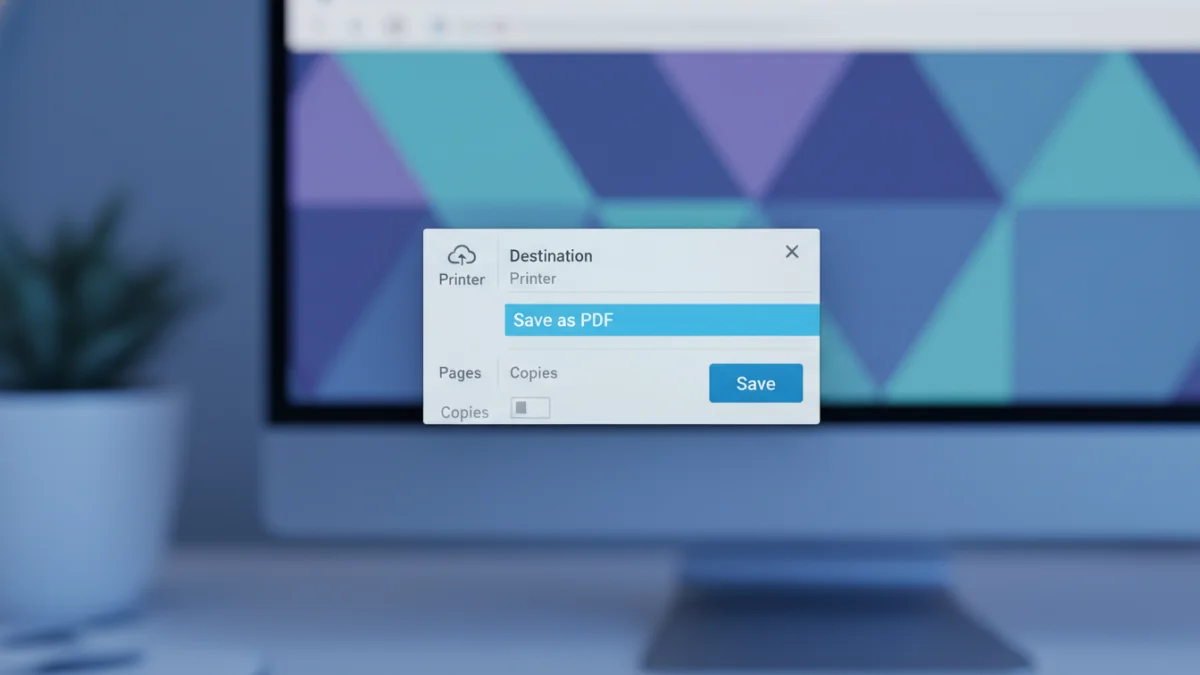
- In the print dialog, change the 'Destination' or 'Printer' to 'Save as PDF'.
- Click 'Save' and choose a name for your new file. This newly saved version will be an identical copy of the original but without any of the printing or copying restrictions.
This is the simplest solution for the common problem of a locked-down but viewable document. The core task of any good pdf remove pdf files unlocker passwords process is to create a clean, accessible copy, and this method does exactly that without extra software.
Using an Online PDF Unlocker
When you need a quick solution and don't have access to a desktop browser, an online PDF password remover can be effective. Websites like Smallpdf, iLovePDF, and Soda PDF offer tools where you can upload your file, and they will process it for you. You typically need to attest that you have the right to remove the password.
To use one, you simply navigate to the site's unlock tool, upload your PDF, enter the password if prompted, and the service will provide a downloadable, unlocked version. While convenient, I always caution colleagues about the security implications. Avoid using these services for documents containing sensitive personal, financial, or proprietary information.
When to Use Desktop Software
For more complex tasks or when dealing with highly sensitive documents, dedicated desktop software is the superior choice. It offers more power, better security, and features that go beyond simple password removal.
Benefits of Offline Tools
The primary advantage of desktop software is security. Your files are never uploaded to the internet, eliminating the risk of data breaches from third-party services. These applications, like Adobe Acrobat Pro, Foxit PhantomPDF, or QPDF, often provide more robust options for handling different types of encryption and can sometimes recover files with lost owner passwords if you have the user password. They also support batch processing, which is a lifesaver when you need to unlock dozens of files at once.
Choosing the Right Software
For professional use, Adobe Acrobat Pro is the industry standard. It provides a straightforward way to remove security settings if you have the owner password. From the 'File' menu, you can access 'Properties' and then navigate to the 'Security' tab to change the security method to 'No Security'. For developers and technical users, command-line tools like QPDF offer powerful scripting capabilities for automating PDF manipulation tasks in a secure, local environment.
Security and Legal Considerations
Just because you can do something doesn't always mean you should. Removing a password from a PDF comes with important ethical and legal responsibilities that every professional should understand.
Is It Legal to Remove a PDF Password?
It is generally legal to remove a password from a PDF file that you own or have the explicit rights to alter. For example, if you set the password yourself and forgot it, or if you are removing restrictions from a document for internal company use with permission. However, removing a password from a document you do not own or have rights to, such as a copyrighted e-book or a confidential document you received without permission, could constitute a breach of copyright or contract law. Always ensure you are the rightful owner or have authorization.
Data Privacy with Online Tools
When you use an `unlock pdf online` service, you are uploading your data to someone else's server. While reputable services claim to delete files after a certain period, the risk of exposure remains. My rule of thumb is simple: if the document contains information you wouldn't post on a public website, do not use an online tool to process it. Stick to the browser trick or trusted desktop software for anything confidential.
Comparison of PDF Unlocking Methods
| Method | Pros | Cons | Best For |
|---|---|---|---|
| Browser 'Print to PDF' | Completely free; Secure (offline); No extra software needed. | Only removes owner (permission) passwords; Requires the open password. | Quickly removing print/copy restrictions from non-sensitive files you can open. |
| Online Unlocker Tools | Very fast and convenient; Accessible from any device. | Major security and privacy risks; May have file size limits. | Unlocking non-confidential documents when you don't have access to a desktop computer. |
| Desktop Software (e.g., Acrobat Pro) | Highest level of security; Advanced features; Batch processing. | Often requires a paid subscription; Can be complex for new users. | Professionals handling sensitive or a high volume of documents. |
| Command-Line Tools (e.g., QPDF) | Extremely powerful; Scriptable and automatable; Free and open-source. | Requires technical knowledge (command-line interface); Steep learning curve. | Developers and IT professionals who need to integrate PDF unlocking into automated workflows. |