Working with password-protected PDF files can be a real roadblock, especially when you've forgotten a password or received a file with editing restrictions you need to bypass. I recently helped a colleague who couldn't print a critical report because of a permissions password they didn't have. It’s a common scenario that can halt productivity.
Table of Contents
- Understanding PDF Security Levels
- User Password (Open Password)
- Owner Password (Permissions Password)
- Method 1: The Browser Print-to-PDF Trick
- Step-by-Step Guide
- Method 2: Using an Online PDF Password Remover
- Method 3: Dedicated Desktop Software
- Ethical and Legal Considerations
- Method Comparison: Unlocking Protected PDFs
- FAQs
- Is it legal to bypass PDF security restrictions?
- What is the difference between an owner password and a user password?
- Can I use these methods to unlock a PDF on my mobile phone?
Fortunately, several methods exist to regain control over these documents. It's not about malicious activity; it's about accessing and utilizing information you have a right to use. This guide will walk you through the most effective techniques, from simple browser hacks to more powerful software solutions.
Understanding PDF Security Levels
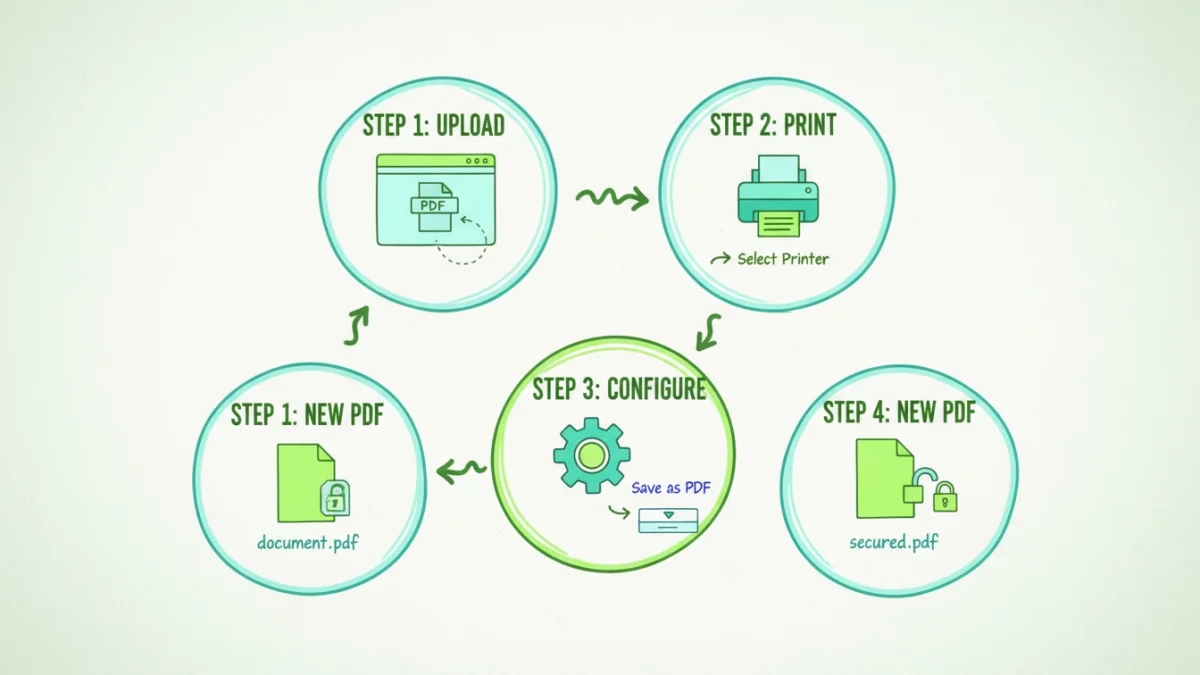
Before we jump into the solutions, it's crucial to understand the two types of passwords a PDF can have. They serve different purposes, and the method you choose will depend on which one you're facing.
User Password (Open Password)
This is the password required to open and view the document. It encrypts the entire file, making it unreadable without the correct key. Bypassing this type of security is significantly more difficult and often requires brute-force methods, which can be time-consuming and are not always successful. These passwords protect the content from any unauthorized viewing.
Owner Password (Permissions Password)
This is the more common restriction people need to bypass. An owner password doesn't prevent you from opening the file, but it restricts actions like printing, copying text, editing, or adding comments. Many of the techniques discussed here are designed specifically to remove these types of permissions, as they are often set to prevent accidental changes rather than to secure sensitive data.
Method 1: The Browser Print-to-PDF Trick
One of the simplest and most accessible ways to remove owner-level restrictions is by using a web browser. I use this trick all the time for quick fixes. Most modern browsers like Google Chrome, Firefox, and Microsoft Edge have a built-in PDF reader and a 'Print to PDF' function that can essentially create a new, unrestricted copy of the document.
Step-by-Step Guide
This process works by rendering the document visually and then saving that visual output as a brand new PDF, which doesn't carry over the original file's metadata or restrictions.
- Open the PDF: Drag and drop the protected PDF file directly into an open browser window. If it has a user password, you'll need to enter it to view the file. This method only works for owner passwords.
- Open the Print Dialog: Press Ctrl+P (on Windows) or Cmd+P (on Mac) to open the print menu.
- Change the Destination: In the print dialog, look for the 'Destination' or 'Printer' field. Click it and select 'Save as PDF' or 'Microsoft Print to PDF'.
- Save the New File: Click the 'Save' button and choose a location on your computer. The new file you just created will be a perfect copy of the original but without any of the printing or editing restrictions.
Method 2: Using an Online PDF Password Remover
If the browser trick doesn't work or you need a more streamlined solution, several online tools can help. Websites like Smallpdf, iLovePDF, and Soda PDF offer a free `pdf password remover` service. These tools are incredibly user-friendly and require no software installation.
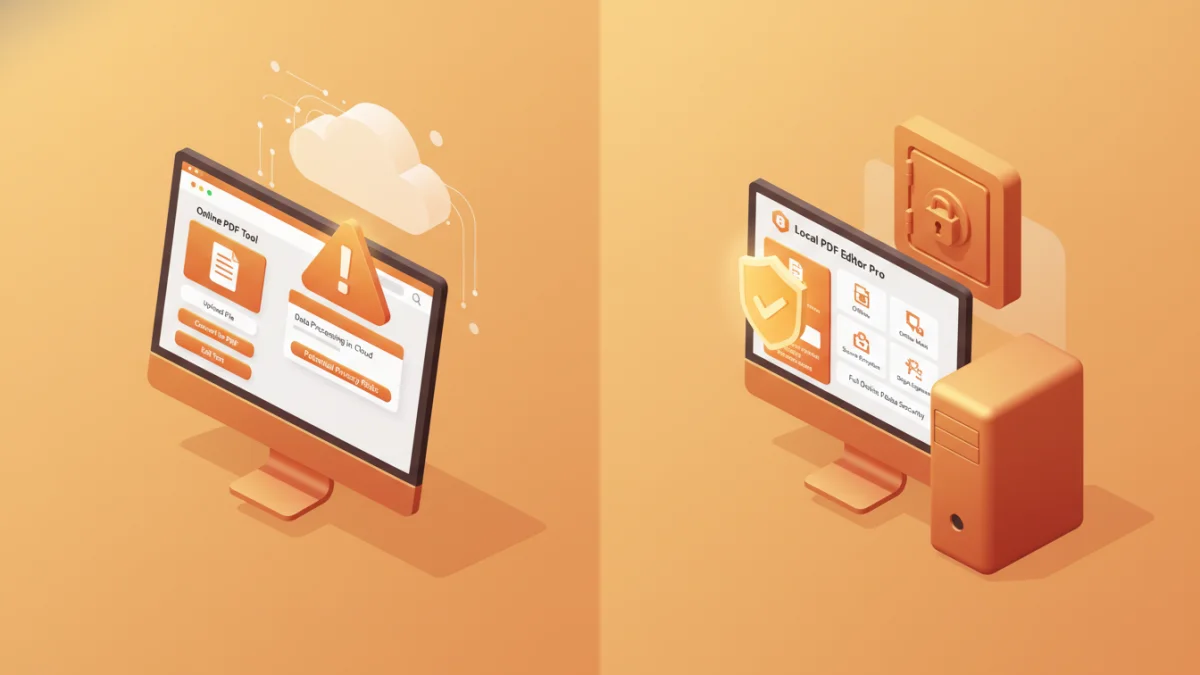
You simply upload your protected file, the service processes it on its servers, and then provides you with a link to download the unlocked version. It's a quick and efficient way to handle files when you're on the go. However, this convenience comes with a significant caveat: privacy. I would never recommend uploading sensitive or confidential documents to a third-party server. For non-sensitive files like public reports or manuals, they are perfectly fine.
Method 3: Dedicated Desktop Software
For files protected with a strong user password or when dealing with highly sensitive information, desktop software is the most secure and powerful option. Applications like Adobe Acrobat Pro DC offer features to remove security settings, provided you know the password. Other specialized tools are designed specifically for password recovery and can attempt to crack unknown user passwords.
These programs run locally on your machine, ensuring your data never leaves your computer. While many are paid solutions, their advanced capabilities, such as batch processing and support for strong encryption, make them a worthwhile investment for businesses or individuals who frequently encounter the challenge of how to `pdf security protected files bypass restrictions` in a professional setting.
Ethical and Legal Considerations
It's important to approach this topic responsibly. Using these methods to access or modify documents you have legitimate access to—for example, a file you created but forgot the password for—is perfectly acceptable. However, using these techniques to access copyrighted material or confidential information without authorization is illegal and unethical.
Always ensure you have the right to modify the document's security settings before proceeding. The goal is to overcome technical hurdles, not to infringe on intellectual property or privacy rights.
| Method | Pros | Cons | Best For |
|---|---|---|---|
| Browser 'Print to PDF' Trick | Completely free, no extra software, secure (local processing). | Only removes owner (permissions) passwords, not open passwords. | Quickly removing print/edit restrictions on non-sensitive files. |
| Online PDF Password Remover | Very easy to use, fast, accessible from any device. | Major privacy and security risks for sensitive documents. | Unlocking non-confidential files when you're away from your main computer. |
| Desktop Software | Most powerful, can handle both password types, secure and private. | Usually requires a paid subscription or one-time purchase. | Sensitive documents, batch processing, or recovering lost user passwords. |